Take your edits live
TurnClick lets you modify any page on the web, but for your personalizations to actually show up for visitors, you’ll need to install the TurnClick Embed Code on your site. By installing the Embed Code, you are allowing TurnClick to verify your ownership of the site you want to modify and personalize.
The Embed Code is only available to registered users of the application. The first step in taking your edits live is to register for TurnClick by providing your name, email address, password, and agreeing to our terms of service.
Access and install the Embed Code
- Log into your account
- Click on the "Embed Code" link in the top navigation
- In the popup window that opens, you'll be presented with a unique code
- Copy this code and paste it in the <head> section of your website (specifically any pages you want to modify)
- If you have a WordPress website, search for our plugin: TurnClick Embed Code for WordPress to easily install the Embed Code on your site without editing your source files or asking your webmaster for help
- When you load your website URL to modify one of your website pages, you'll see a small version of the TurnClick symbol light up on the right side of the search box indicating that the Embed Code is installed on the page you are loading
- If the symbol remains gray, that means our system did not find the Embed Code on the page you are attempting to edit
Enable Live Page Link
The next time you open a page in the Canvas with your unique Embed Code installed, click the "View + Share" button and you'll see the Live Page Link section activated with a unique URL you can use to begin displaying your modified content to website visitors.
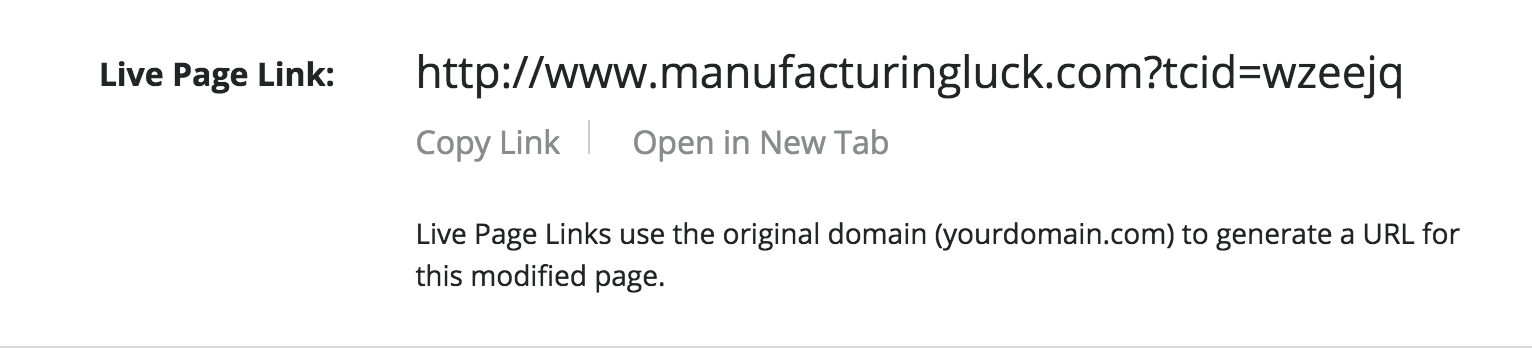
Website visitors will only see the modifications you made to your site if they click through from this unique link associated with your edited page.
Customize your Live Page Link
Within the View + Share window of your page, you’ll see an additional option to customize the default page link parameters. This lets you replace the default random values the system assigns your page with vanity parameters that are more user-friendly.

You need to set a key and a value for the parameter in the two fields that are provided. This can be any letter or number combination. It’s important to choose something unique to the edits you made so you know what the link is referencing later on when you don’t have the context of the TurnClick Canvas to see the edits you made.
For instance, if you set your custom key and value to “offer” and “20off”, to indicate that this is the “20% Off Campaign”, your new Live Page Link would be www.yoursite.com/?offer=20off.
Finally, share that custom link with any of your visitors through paid ads, emails, or social media posts and you can begin optimizing your site for specific visitors.